Hot Patch window
The Hot Patch window is your iteration cockpit. Open it once, press Start, and keep it nearby while you play - so saving from your IDE is the only step between “idea” and “feel it in-game.”
Tools → DivinityCodes → Hot Patch
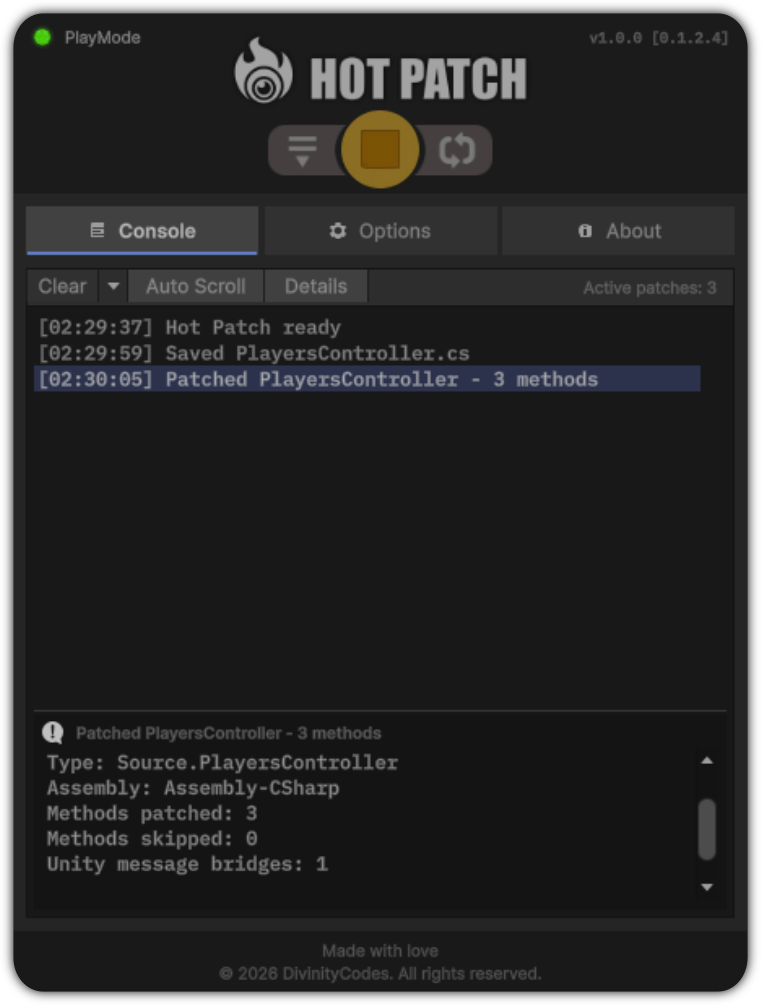
Everything you need for the live loop sits on one bar: start patching, force a sync, undo a bad tweak, or jump back to the script you just changed.
Tabs that match how you work
| Tab | Why it exists |
|---|---|
| Home | Your live feed - confirm saves landed, spot skips, count active patches |
| Options | License once, then leave defaults alone unless you are tuning detection |
| About | Version and product links |
The control bar stays on every tab so you never dig for Start, Stop, or Recompile mid-session.
Keep the loop moving
Start / Stop
| Start | Arm Hot Patch. Enter Play Mode and every IDE save can become a live patch. |
| Stop | Hand control back to Unity’s normal auto-refresh. |
Accept the license on Options before Start unlocks - one-time, then you are free to iterate.
Recompile
When you want a full refresh from disk without abandoning the session:
- In Play Mode - re-apply everything Hot Patch can, still without a domain reload
- In Edit Mode - normal Unity compile
Use it after a missed save, a skipped patch, or when you just want confidence that disk and runtime match.
More actions
| Action | When it helps |
|---|---|
| Revert Last Patch | Undo the last tweak that felt worse |
| Clear Patches | Wipe live hooks; files on disk stay untouched |
| Apply/Sync | Pull in saves the watcher might have missed after an alt-tab |
| Jump to Script | Open the last patched file in Unity and keep moving |
| Check for Updates / docs / issues | Stay current and get help without leaving the tool |
Revert, Clear, and Apply/Sync need Play Mode with Hot Patch running - they are part of the live workflow, not Edit Mode chores.
The Home log is your feedback channel
You should not have to guess whether a save worked. The Home log is the heartbeat of the session:
- Gray - normal traffic (saves, success)
- Amber - “we saw it, but skipped” (unsupported edit, excluded file)
- Red - compile or patch errors to fix in the IDE
Clear, auto-scroll, and Active patches keep the view honest. Right-click to copy or export when you file a bug.
Lines you will learn to trust
| Message | Meaning for your session |
|---|---|
Hot Patch is ready… |
Save freely - auto-refresh is held |
Patched MyClass |
That type is live |
Skipped… / No patchable members |
Nothing runtime-changing (or excluded) - try Recompile if you expected a patch |
Play Mode ended… |
Clean exit; patches cleared |
Updates without breaking flow
If a new version is available, an overlay may appear. Hot Patch pauses politely, then restores your Start/Stop state when you dismiss it - or check manually under More actions.
Ready to feel it? Follow Getting Started, or jump into Features for what you can change live.