Getting Started
Unity’s default loop forces you to wait. Save a script, sit through a compile, lose Play Mode state, then rebuild the situation you were testing. Hot Patch breaks that cycle.
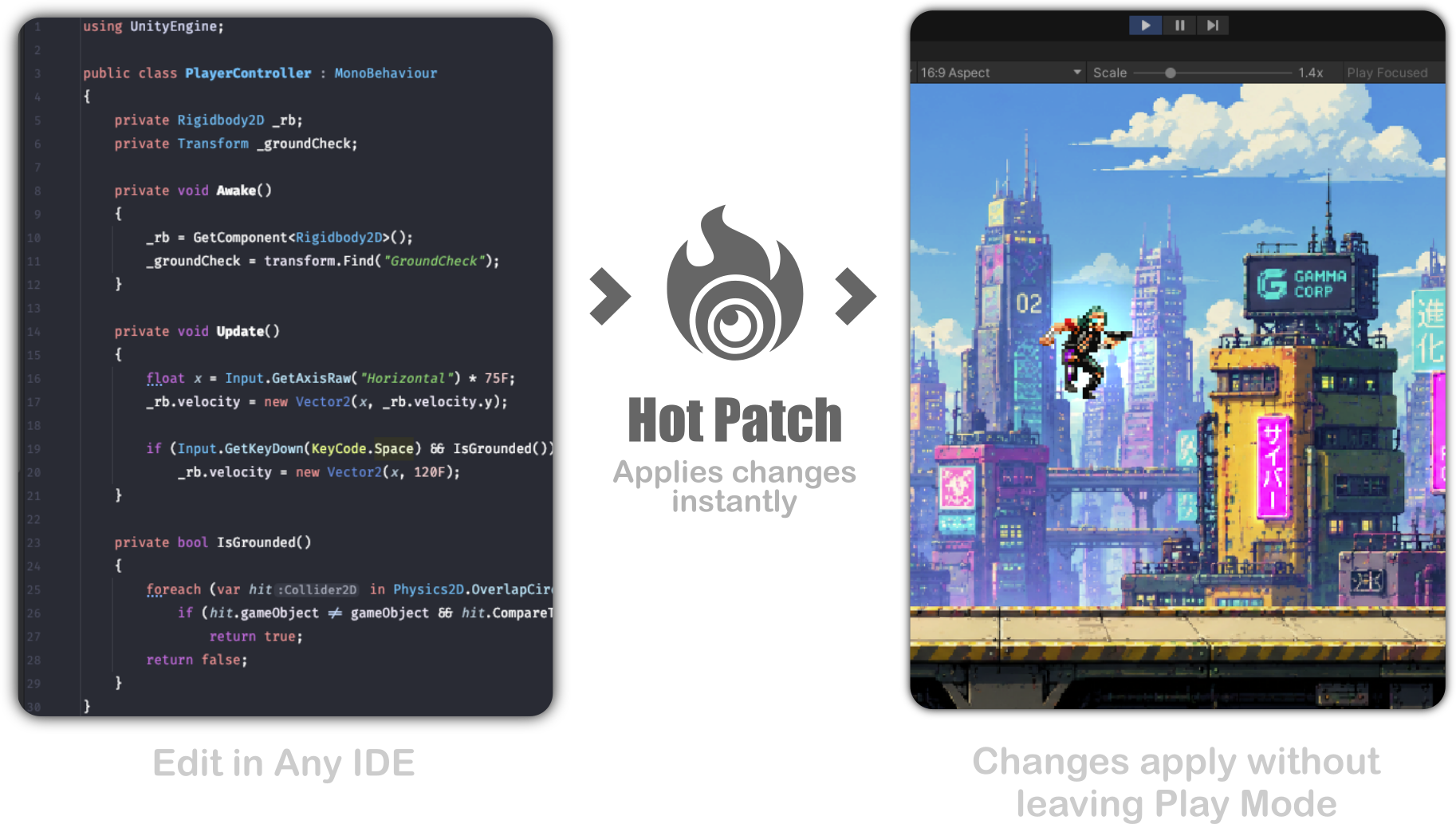
Edit in your IDE. Save. Keep playing. The change lands on the next time that code runs - often in milliseconds - while your scene, timers, and debug setup stay exactly where you left them.
From install to first live patch
1. Import
Add the package from the Asset Store
2. Start
Accept the license, then press Start
3. Iterate
Enter Play Mode, edit C#, save, and feel it live
Why this matters
Gameplay iteration is usually limited by compile time, not by ideas. Hot Patch is built for the moments that matter most:
- Tuning jump feel, damage, AI weights, or UI timing without restarting the fight
- Debugging a rare state you finally reproduced - and keeping it
- Prototyping in Play Mode instead of planning around reloads
No project rewrite. No special attributes required to get started. Import, start, play.
Open the window
Tools → DivinityCodes → Hot Patch
| Tab | Role in your workflow |
|---|---|
| Home | Start patching, watch the live log, recompile or sync when you need a full refresh |
| Options | License and fine-tuning - defaults work for most teams |
| About | Version and links |
Your first session
1. Import
Get the package from the Unity Asset Store and import it into your project.
2. Start Hot Patch
- Open Tools → DivinityCodes → Hot Patch
- On Options, accept the license
- On Home, press Start
Hot Patch is armed. As soon as you enter Play Mode, saves from your IDE become live patches.
3. Edit while playing
- Enter Play Mode
- Wait for: "Hot Patch is ready - IDE saves will patch at runtime without recompiling."
- Change a gameplay script in Rider, Visual Studio, VS Code, or any editor
- Save
The new logic runs the next time that method is called. Tweak Update and feel it next frame. Change a button handler and click again.
One-shot Unity messages
Editing Awake or Start updates the method, but Hot Patch will not re-fire those events automatically. Prefer editing code that runs again - or call it yourself. See Unity callbacks.
What happens under the hood (in plain words)
When you save during Play Mode:
- Hot Patch sees the file change
- It compiles only what changed - not your whole solution
- Live method calls are redirected to the new code
- Your Play Mode session never domain-reloads
That is why state survives and why the loop feels instant.
Staying in control of Unity’s refresh
Normally, Unity recompiles on every script save and wipes Play Mode. While Hot Patch is running, it holds that auto-refresh so you decide when a full recompile happens.
- Saves during Play Mode → live patches, state kept
- Exit Play Mode → patches clear; optionally Unity recompiles so Edit Mode matches disk (on by default)
- Recompile in the window → full sync from disk without leaving Play Mode when you want it
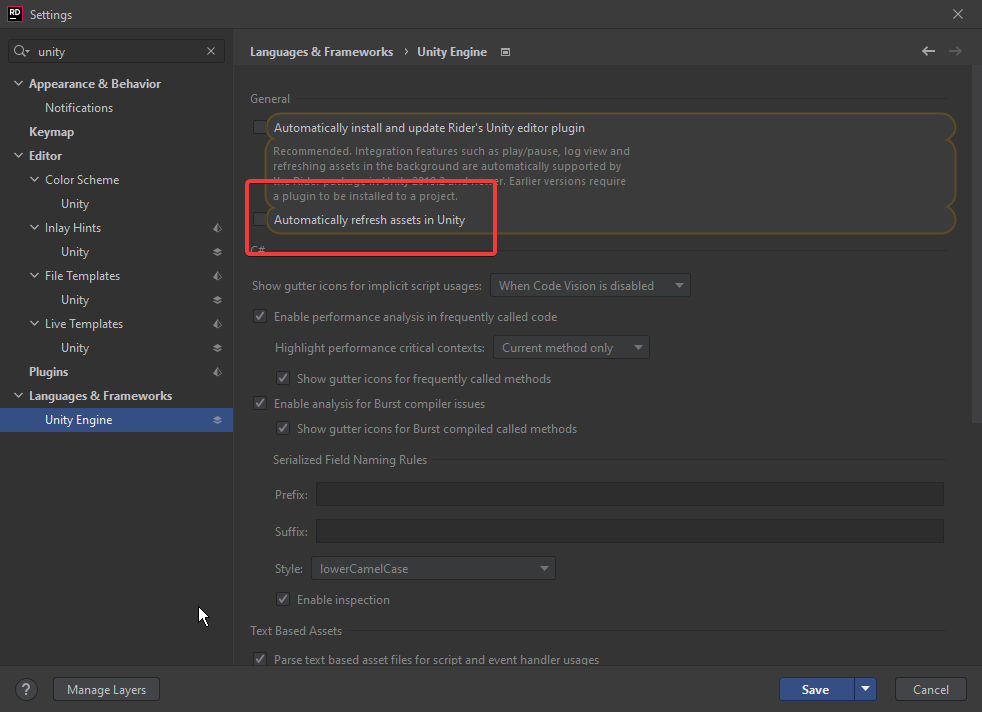
JetBrains Rider
Disable "Automatically Refresh Assets in Unity" under
Settings → Appearance & Behavior → System Settings
so Rider does not force a domain reload behind Hot Patch’s back.
When a save does nothing
Sometimes the log shows a save but no patch - usually because the edit was comments-only, the script is under Editor/, or the change type is unsupported. Press Recompile for a full sync, or see Troubleshooting.
Stop when you are done
Press Stop on Home to return Unity to its normal refresh behavior. Exiting Play Mode also clears runtime patches and can request a compile so the Editor stays in sync with disk.
Next steps
- Features - what you can change live, and why it speeds you up
- Hot Patch window - the controls that keep the loop moving
- Settings - only when you need to tune detection or logging
- Troubleshooting - when a patch does not land